WebcamTX(SSTV)
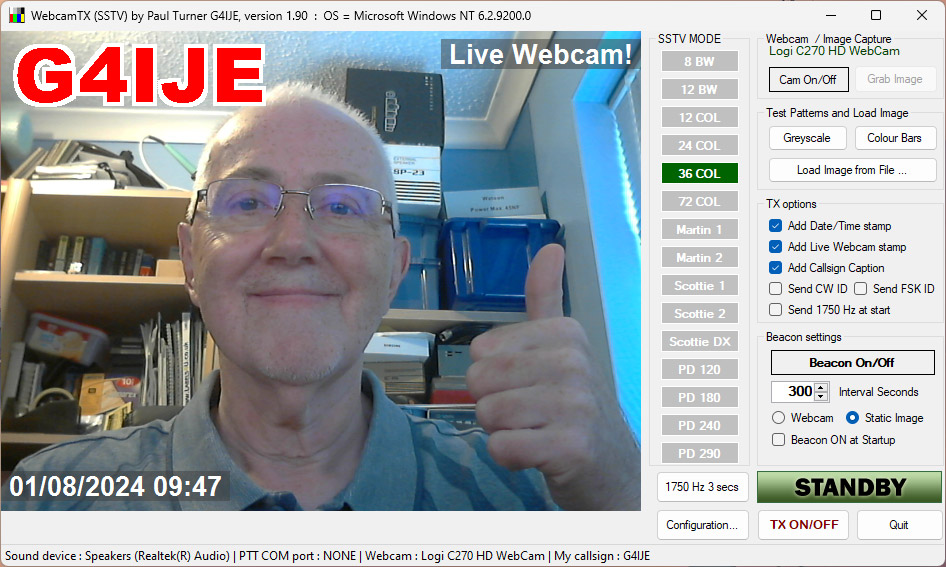
WebcamTX(SSTV) is a Windows program which can grab an image from a webcam and send it immediately via SSTV, allowing live mugshots and shack images to be sent. The majority of popular SSTV modes are supported and any currently installed image capture device can be used, typically a webcam. Note that the program is for TX only - I suggest you use MMSSTV for reception. A few simple captions can be added - see the example image below. An optional FSKID and/or CW ID can be sent at the end of the transmission.
The program works only on a Windows PC, laptop or tablet running Windows 10 or later. It requires Microsoft .NET framework 4.8 which is installed by default on Windows 10 and 11. It works on 32 and 64-bit systems. If you need to run WebcamTX (SSTV) on an earlier Windows version, please contact me via email and I will try to help.
Click here to download WebcamTX(SSTV)
Please note: WebcamTX(SSTV) is experimental software and is not bug-free. If errors occur you will most likely have to restart the program. It's hard to see how it could harm your computer, but this is not guaranteed. You may have to fight against your browser and internet security software to successfully download the installer.
Also note that there is no support for Hamlib, OmniRig or any form of CAT control. You will need to use VOX or RTS to activate your PTT.
Configuration
Sound Output (TX) Device
Select your required sound device from the list. The current Windows default sound device will be used if you do not make a selection. Note that long device names might be truncated but it should still be possible to tell which device you need. If you add or remove a sound device whilst the program is running, click on the Refresh button to get an updated list of available sound out devices.
Clock Frequency Hz
If you have used your selected sound device with MMSSTV and have carried out the slant correction procedure, enter the clock frequency as shown in the MMSSTV options (shown in the Misc tab). The default is 11025Hz but you may transmit a slanted picture if you have not calibrated your sound device in MMSSTV.
PTT COM
Enter the COM (serial) port number that your SSTV interface uses for PTT control. Select NONE if using VOX.
Callsign
This is used for the optional CW ID at the end of the transmission, the FSK ID (if selected) and for the callsign caption that can be added to the transmitted image.
Available Image Capture Devices
Select your required webcam from this list.
Main window
Cam On/Off
This switches the webcam on or off. A live moving image will be displayed when the camera is on and ready.
Grab Image
Click this button to freeze/grab the webcam image, ready for transmission.
Test Patterns and Load Image
The image area can be filled with a greyscale or colour bars for test purposes. The Load Image from File button allows any image file to be loaded and transmitted.
TX Options
These checkboxes determine a number of optional features: date/time stamp, Live webcam! stamp, simple callsign caption, CW ID and FSK ID.
Beacon ON/OFF and Interval
Turn beacon mode on or off and set the beacon interval in seconds. When beacon mode is selected, the START TX button is disabled to prevent conflicts. If you need to stop (beacon) TX once it has started, uncheck Beacon ON and then click the STOP TX button.
START TX
Transmit one frame of SSTV in the currently selected mode.
SSTV MODE
Click on the button corresponding to the required SSTV mode.
Notes on beacon mode:
When running in beacon you do NOT need to use the Cam On/Off, Grab Image or START TX buttons. The first frame is sent a few seconds after checking the Beacon ON checkbox and then at intervals set by the numeric up/down control. The webcam is turned on for approximately 5 seconds, an image is grabbed and then the camera is turned off. SSTV TX starts soon after.
